Upstream+ allows organizations to add their own custom information to wells during the import process.
Custom Well Fields are useful when your organization tracks information that is not included in the standard Upstream+ well fields.
Examples might include:
- Internal operating regions
- Engineering classifications
- Acquisition groups
- Asset teams
- Internal portfolio categories
- Custom reporting groups
- Other organization-specific well attributes
Once imported, these custom values can become part of the well information available in Upstream+.
Where Custom Well Fields Are Defined
Custom Well Fields are created in the Wells worksheet of the Upstream+ Excel uploader.
The available locations are identified in the uploader’s Instructions tab as User Extra Field columns.
Instead of leaving the generic Extra User Field heading in place, replace the heading with the name you want Upstream+ to use.
Example
Suppose your organization groups wells into three internal operating areas.
You could rename an Extra User Field column:
Operating Area
Then populate the rows beneath it:
| Well Code | Well Name | Operating Area |
|---|---|---|
| 100000 | TACO BLAST 1 | North |
| 100001 | HOME RUN ONE 2 | Central |
| 100002 | NEON RIDER 3 | South |
When the workbook is imported, Upstream+ can associate the custom Operating Area value with each corresponding well.
How to Add a Custom Field
- Open the Upstream+ uploader in Excel.
- Open the Wells worksheet.
- Locate one of the columns designated as an Extra User Field in the Instructions tab.
- Replace
Extra User Fieldwith a descriptive field name. - Enter the appropriate value for each well.
- Save the workbook.
- Import the updated workbook into Upstream+.
Choose Clear Field Names
The column heading becomes the field name used by Upstream+.
Use names that will make sense to other users when they encounter the field later.
Good examples include:
Operating AreaAsset TeamDevelopment PhaseAcquisition GroupInternal Well Class
Avoid names that are overly generic, such as:
Field 1OtherCodeCustom
Clear names make custom fields much easier to understand when they are later used for reporting and filtering.
Values Are Associated with Individual Wells
Each custom value should be entered on the same row as the corresponding well.
Upstream+ uses the well information in the uploader to associate that custom value with the correct well.
For example:
100000 | TACO BLAST 1 | North
means that the custom value North belongs to well 100000.
Be careful when copying or sorting data in Excel to make sure custom values remain aligned with the correct well records.
You Can Use More Than One Custom Field
The uploader provides multiple User Extra Field positions.
That means an organization can maintain several custom well attributes at the same time.
For example:
| Well | Operating Area | Asset Team | Development Phase |
|---|---|---|---|
| Well A | North | Team 1 | Producing |
| Well B | South | Team 2 | Development |
| Well C | North | Team 1 | Producing |
Each column becomes its own custom field in Upstream+.
Updating Existing Wells
Custom fields can also be added to wells that already exist in Upstream+.
When the updated Wells worksheet is imported, Upstream+ can update the existing well record with the additional custom information rather than requiring you to create a new well.
This makes it possible to expand your well metadata over time as your reporting needs change.
Best Practices
Keep custom field names consistent between uploads.
For example, if you initially create:
Operating Area
do not rename it to:
Op Area
on a later upload unless you intentionally want to create or change the field definition.
It is also a good practice to use consistent values.
For example, choose one convention:
NorthCentralSouth
rather than mixing similar values such as:
NorthNORTHNorthernN
Consistent data makes custom fields more useful for reporting and filtering later.
What’s Next?
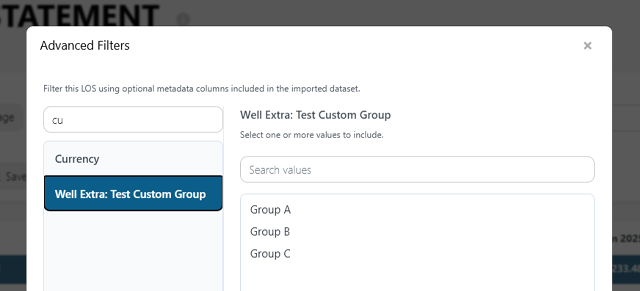
After custom fields have been imported, they can be made available throughout Upstream+ wherever Well Extra fields are supported, including Advanced Filters.
This allows organizations to report on their wells using classifications that are unique to their own operations.