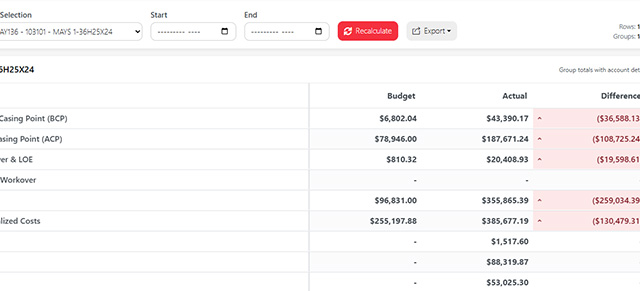
Upstream+ mirrors your company’s unique Roles and responsibilities. In Upstream+, Roles are also used for setting access permissions. Let’s go through how to create custom Roles for your organization.
To create custom Roles, select Administration from the main navigation and then click Manage Roles.
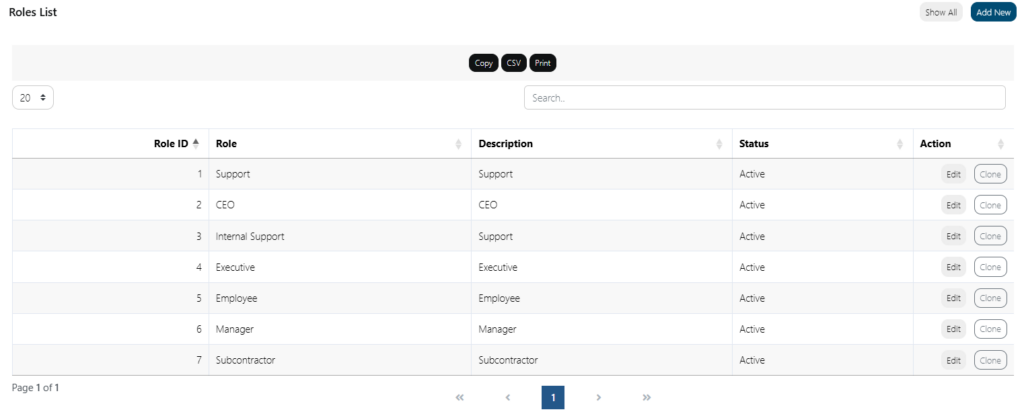
The page will have a list of your company’s Roles in the order that they were created during initial setup. Click the Add New button at the top-right of the page to create a new Role.
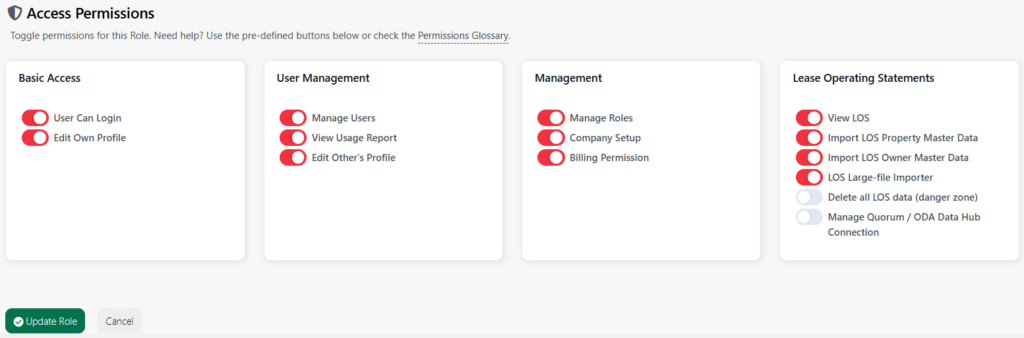
- Enter the Role name, a description of that Role, and the status.
- At the bottom, select the Access Permissions you would like to grant to users in this Role.
- Click Add New Role to create the new Role.
Roles can be edited or made inactive by selecting “Edit” from the “Manage Roles” page and updating the Role properties. For additional support please contact your account manager.
See the Permissions Glossary for a full list.
Next up: Add Users
Was this article helpful?
Thanks for your feedback!