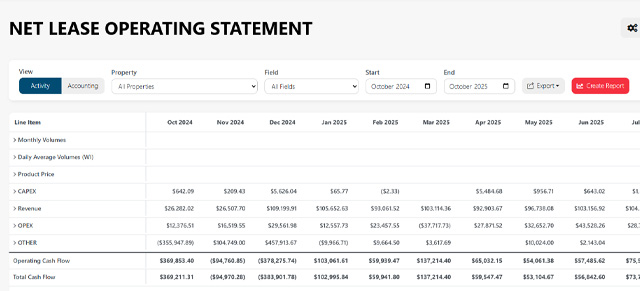
Use Transaction Drilldown to review the source rows behind a report total. Drilldowns help explain where a number came from by showing the transaction-level detail that makes up a summary value.
Instead of only seeing a total in a report, you can open the drilldown to inspect the supporting activity, such as dates, vendors, descriptions, invoices, categories, source files, and amounts.
When to use Transaction Drilldown
Use Transaction Drilldown when you need to:
- Explain a number in a report
- Investigate an unexpected total
- Review the transactions behind a variance
- Confirm which source file contributed to a value
- Check vendor or invoice detail
- Understand why an AFE, account, category, or well has a certain amount
- Validate imported data against the report total
Drilldowns are especially useful when a summary number looks too high, too low, missing, or out of place.
Where drilldowns may appear
Transaction Drilldown may be available from reports such as:
- LOS Statement
- Budget vs Actual
- Budget vs Actual Detail
- Well Summary Report, if enabled
- Dashboard widgets, if the widget supports drilldown
Not every value will always have drilldown detail. Some values may be calculated summaries, empty values, or totals that do not expose transaction-level rows.
Opening a drilldown
To open a drilldown, click a report value that supports transaction detail.
Depending on the report, this may be:
- A monthly amount
- A category total
- An account value
- An AFE amount
- A well-level amount
- A budget or actual value
- A difference or variance value
If a value is not clickable, drilldown may not be available for that number.
What the drilldown shows
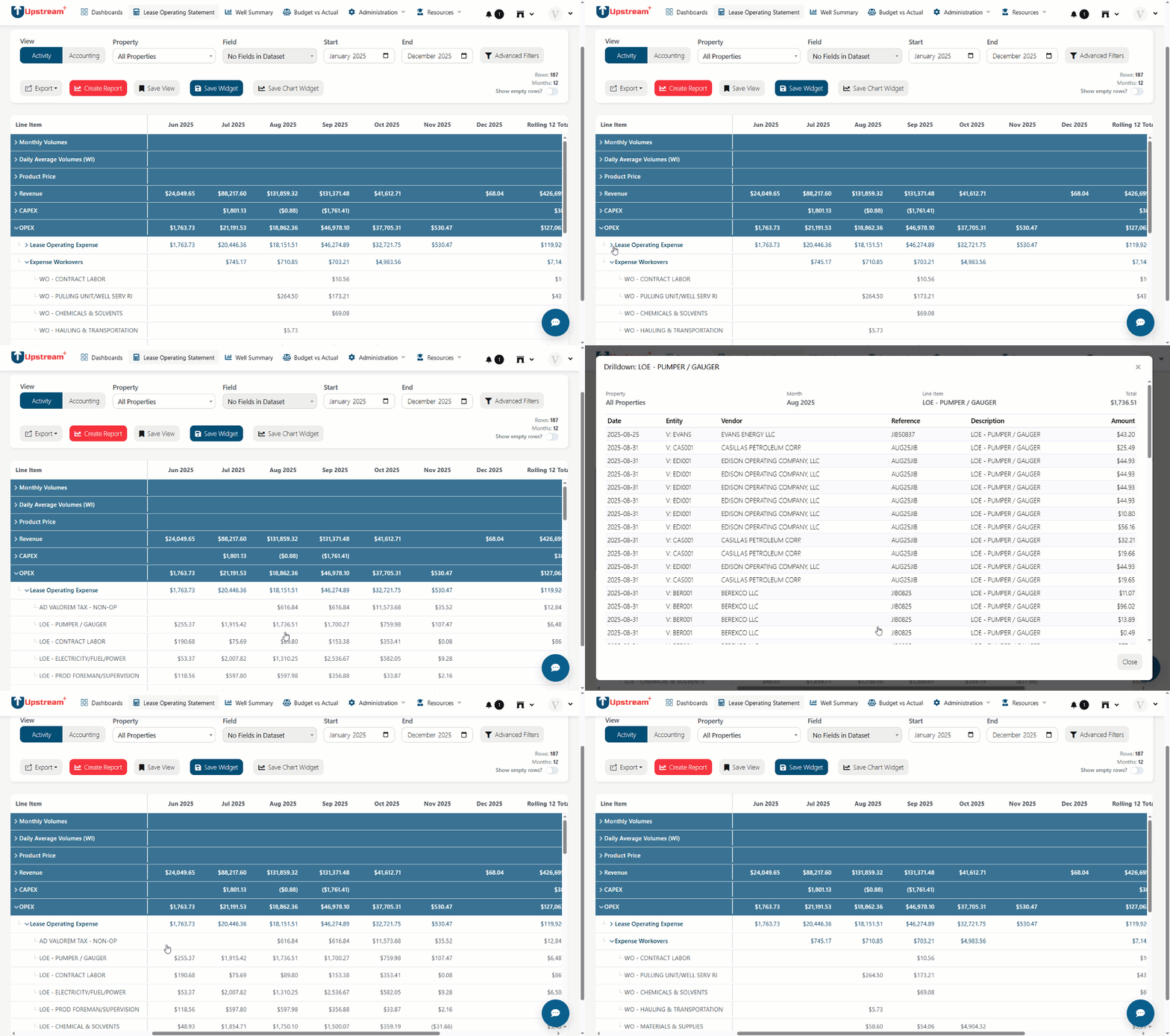
The exact fields may vary by report, but a drilldown commonly shows:
- Report or section title
- Property
- AFE
- Month or date
- Line item
- View or report mode
- Number of matching lines
- Total amount
- Transaction date
- Vendor
- Description
- Invoice number
- Category
- Amount
- Source job
- Source file
- Link to the original record, if available
Use these details to trace a report number back to the imported data that created it.
Property, month, and line item
Some drilldowns show the selected Property, Month, and Line Item at the top.
These fields tell you exactly what report value you opened.
For example, if you clicked a January repair expense for one property, the drilldown header helps confirm that the rows shown belong to that same property, month, and expense line.
Always check the header before reviewing the transaction rows.
AFE and view
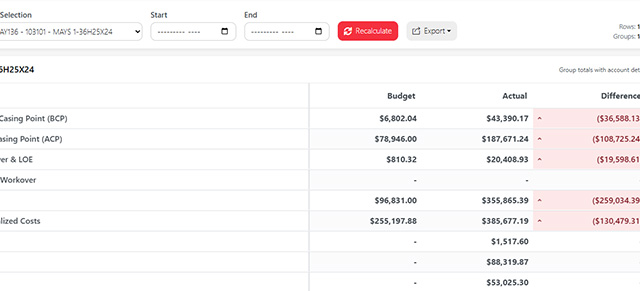
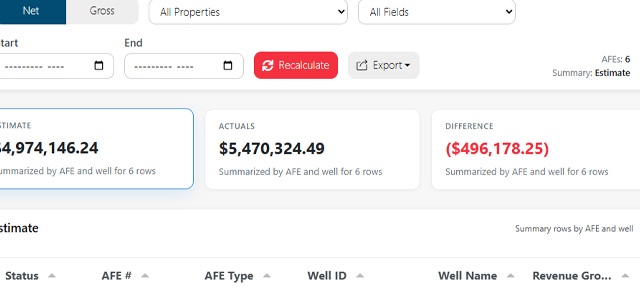
Budget vs Actual drilldowns may show the selected AFE and View.
The AFE tells you which project or authorization the transaction belongs to.
The view tells you which side of the report you opened, such as estimate, actuals, or difference.
This helps confirm whether you are reviewing the correct part of the Budget vs Actual report.
Lines and total
The drilldown may show the number of matching lines and the total amount represented by those lines.
Use this to confirm whether the transaction rows add up to the value you clicked.
If the line count is high, the modal may show only the first set of matching rows. In that case, narrow your report filters or export the data for a broader review.
Transaction rows
Each row represents a source transaction or imported detail line.
Common columns include:
Date
The transaction or accounting date associated with the row. Use this to confirm the row belongs in the selected reporting period.
Vendor
The vendor associated with the transaction, if available. Use this to identify who the payment or charge was related to.
Description
A short description from the source data, if available. Use this to understand what the transaction represents.
Invoice number
The invoice or reference number from the source system, if available. Use this to match a drilldown row back to accounting records.
Category
The category assigned to the transaction or account. If the category looks wrong, review LOS Settings and account mapping.
Amount
The amount included in the report total. Negative amounts may be styled differently to make credits, reversals, or deductions easier to identify.
Source job
The import job or process that added the row. Use this when troubleshooting whether a value came from a specific import.
Source file
The file that supplied the row. Use this to trace a value back to the uploaded spreadsheet or source export.
Original link
If available, Open links to the original source record or supporting document. This is helpful when you need to review the transaction outside Upstream+.
How to investigate a number
When a report total looks unexpected, use this process:
- Click the value to open the drilldown.
- Confirm the header matches the value you clicked.
- Review the line count and total.
- Sort or scan rows by amount.
- Look for unusually large transactions.
- Check vendor, invoice, description, and category.
- Confirm the source file or source job.
- Open the original record if available.
- Return to the report and adjust filters if needed.
This helps separate real activity from filtering, mapping, or import issues.
Common things to look for
When reviewing drilldown rows, look for:
- Duplicate transactions
- Missing vendor names
- Incorrect dates
- Amounts in the wrong month
- Transactions mapped to the wrong category
- Unexpected negative amounts
- Large one-time charges
- Source files from the wrong import
- Rows tied to the wrong AFE, property, or account
- Transactions that should have been excluded
If you find an issue, the fix may involve correcting the source file, adjusting LOS Settings, or re-importing data using the appropriate import mode.
Drilldown and filters
Drilldown results are based on the report filters active when you clicked the value.
That may include:
- Property
- Field
- AFE
- Start and end month
- Cash or Volume mode
- Net or Gross mode
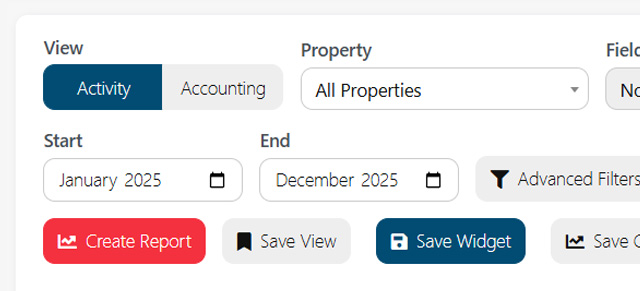
- Activity or Accounting view
- Advanced filters
- Visible report section
If the drilldown does not show the rows you expected, review the report filters first.
Drilldown and imported data
Drilldowns only show data that has been imported into Upstream+.
If expected rows are missing, check:
- Whether the source file included the rows
- Whether the import completed successfully
- Whether rows failed validation
- Whether the selected import mode skipped or replaced rows
- Whether the date range includes the transaction dates
- Whether filters exclude the rows
For import-related issues, review the Import LOS Data page and the source file.
Drilldown and account mapping
If rows appear in the wrong category or line item, the issue may be account mapping.
Review LOS Settings if:
- An account appears under the wrong group
- A category total includes unexpected transactions
- An expense appears in revenue
- A transaction is uncategorized
- A new account was recently added
- The COA structure changed
After updating account mapping, refresh the report and recheck the drilldown.
Exporting drilldown data
Some reports may allow exporting the full report but not the drilldown modal itself.
If you need to review more detail outside Upstream+:
- Narrow the report filters.
- Export the report or source view.
- Use the source file name, vendor, invoice, date, or amount to match rows.
- Compare exported results to the drilldown.
If the modal only shows a limited number of rows, exporting can help with larger reviews.
Common workflows
Investigate a high expense
- Open the LOS Statement or Budget vs Actual report.
- Find the high expense amount.
- Click the value to open drilldown.
- Sort or scan for the largest transactions.
- Review vendor, description, invoice, and source file.
- Confirm whether the amount is valid.
Check an AFE actual amount
- Open Budget vs Actual.
- Find the AFE and well.
- Click the actual amount.
- Review the transaction lines.
- Confirm the source job and source file.
- Open the original record if available.
Trace a value back to an import
- Open the drilldown for the report value.
- Review the source job and source file.
- Compare the row to the uploaded file.
- Confirm whether the value came from the expected import.
- Re-import or correct the source data if needed.
Find mapping problems
- Open the report value that looks miscategorized.
- Review the transaction account or category.
- Confirm whether similar rows are grouped correctly.
- Go to LOS Settings.
- Update category, group, or account mapping as needed.
- Return to the report and refresh.
Troubleshooting
I cannot click a value
Drilldown may not be available for that value. Some totals, empty cells, calculated values, or dashboard widgets may not support transaction detail.
The drilldown is blank
The selected value may not have matching transaction rows, or filters may exclude the data. Confirm the report filters and date range.
The total does not match what I expected
Check whether the report is using Net or Gross, Activity or Accounting view, or another report mode. Also confirm filters and date range.
Rows are missing
Check the source import, validation results, date range, and filters.
Too many rows appear
Narrow the report filters by property, field, AFE, date range, account, or category.
A row is in the wrong category
Review LOS Settings and account mapping.
I see the wrong source file
The value may have come from a different import than expected. Review the source job and source file, then check import history or source uploads.
The original link is missing
Not every imported row has a link to the original record. If no link is available, use the source file, invoice number, vendor, date, and amount to trace the record.