Upstream+ helps oil and gas teams import, organize, analyze, and report Lease Operating Statement data. It turns accounting and production data into usable reports, dashboards, summaries, and drilldowns so your team can review operating performance, budget activity, well-level results, and supporting transaction detail.
Use this guide if you are new to Upstream+ or setting up an organization for the first time.
What Upstream+ is used for
Use Upstream+ to:
- Import LOS data from accounting or production exports
- Configure how accounts roll into LOS categories and groups
- Review Lease Operating Statement activity
- Compare budgeted AFE amounts against actual costs
- Analyze well-level cash or volume performance
- Drill into transaction-level detail behind report totals
- Save reusable report views
- Add report widgets to dashboards
- Share reporting setups with other users or roles
Upstream+ is designed to help users move from raw imported data to practical operating insight.
Recommended setup order
For the best experience, set up Upstream+ in this order:
- Review LOS Settings
- Download the correct import template
- Import LOS data
- Review the LOS Statement
- Review Well Summary reports
- Review Budget vs Actual reports
- Save useful views and widgets
- Build dashboards for recurring review
Following this order helps prevent mapping issues, template mismatches, and incomplete reports.
Step 1: Review LOS Settings
Start with LOS Settings.
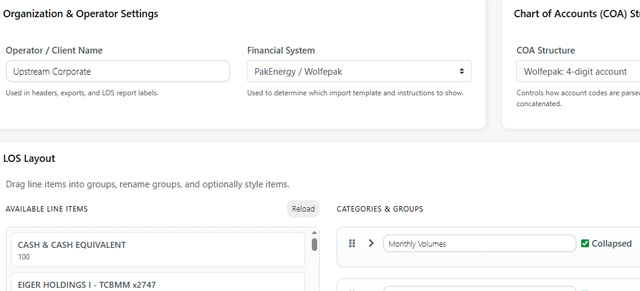
LOS Settings control how Upstream+ interprets and organizes your data. These settings affect import templates, account mapping, report labels, categories, groups, and exports.
Before importing data, confirm:
- Operator / Client Name
- Financial System
- COA Structure
- Categories
- Groups
- Account mappings
- Default reporting assumptions, if available
If settings are wrong, reports may show values in the wrong section or the import template may not match your source data.
Step 2: Download the import template
After LOS Settings are correct, go to Import LOS Data and download the Excel template.
The template is based on your current settings, including financial system and Chart of Accounts structure.
Use a fresh template when:
- You are importing for the first time
- LOS Settings changed
- The financial system changed
- The COA structure changed
- New fields or mappings were added
Using the latest template helps reduce validation errors.
Step 3: Prepare your import file
Open the downloaded template and add your accounting or production data.
Before uploading, check that:
- Required columns are filled in
- Dates are formatted correctly
- Numeric values are in numeric columns
- Properties, fields, wells, accounts, and AFEs are consistent
- The file contains the correct reporting period
- The file was saved in a supported format
Keep a copy of the source file for your records.
Step 4: Upload and validate data
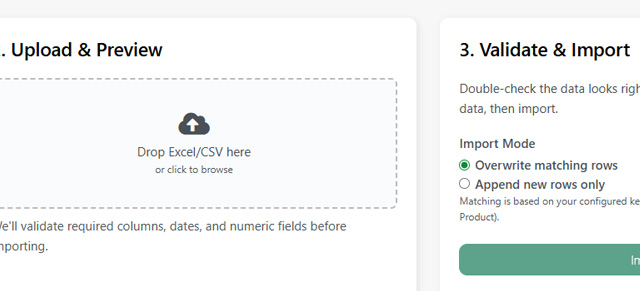
On the Import LOS Data page, upload your completed Excel or CSV file.
Upstream+ will preview and validate the file before importing. Review the preview carefully before continuing.
Check for:
- Missing required fields
- Incorrect dates
- Misaligned columns
- Unexpected blank values
- Wrong sheet selection
- Financial system mismatch warnings
- Manual field mapping prompts
Do not import the file until the preview looks correct.
Step 5: Choose an import mode
Before importing, choose how Upstream+ should handle data that may already exist.
Append missing rows only
Use this when you want to add new records without replacing existing matching records.
This is usually the safer option for routine imports.
Overwrite matching rows
Use this when the uploaded file should replace existing matching records.
Use this carefully when correcting or refreshing previously imported data.
Step 6: Review the LOS Statement
After importing, open the LOS Statement.
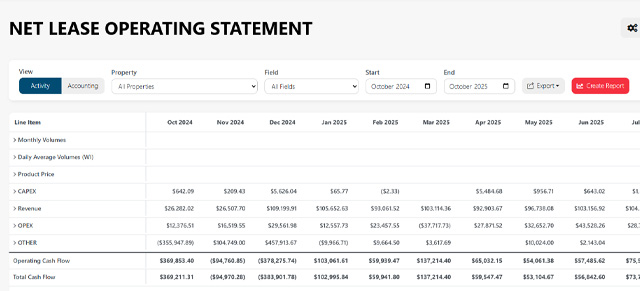
This is the main report for reviewing Lease Operating Statement data.
Use the LOS Statement to:
- Review revenue and expense categories
- Compare results across properties or fields
- Switch between Activity and Accounting views
- Review account-level detail
- Drill into supporting transaction rows
- Confirm imported data appears correctly
If something looks wrong, check the selected filters, date range, imported file, and LOS Settings.
Step 7: Review the Well Summary Report
Use the Well Summary Report to compare performance by well.
The report may support different modes, such as:
- Cash mode for financial review
- Volume mode for production or activity review
Use this report to identify wells with unusual expenses, missing activity, low production, or significant changes over time.
Step 8: Review Budget vs Actual
Use Budget vs Actual to compare estimated AFE amounts against actual costs.
This report helps you understand:
- Which AFEs are over or under budget
- Which wells have the largest differences
- How actual costs compare to estimates
- Which transactions support a summary amount
Use the summary page for AFE-level review and the detail page for account-level investigation.
Step 9: Use Transaction Drilldown
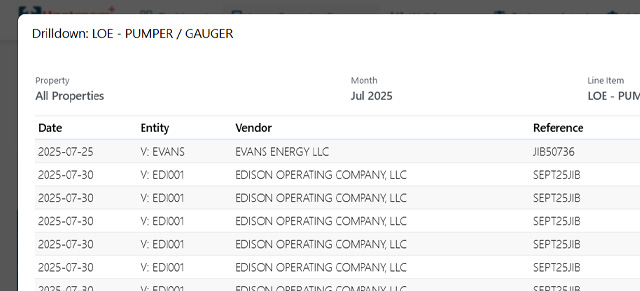
Many reports allow you to click into a number to view supporting transaction detail.
Transaction Drilldown can show information such as:
- Date
- Vendor
- Description
- Invoice number
- Category
- Amount
- Source job
- Source file
- Original record link, if available
Use drilldown before assuming a report number is wrong. It helps trace a summary value back to the imported data behind it.
Step 10: Save views and widgets
When you create a report setup you want to reuse, save it.
Save View
Use Save View to preserve a report setup for later.
Saved views are useful for recurring reports, monthly reviews, or personal analysis.
Save Widget
Use Save Widget to add a report setup to a dashboard.
Saved widgets are useful when a team needs to review the same information repeatedly.
Save Chart Widget
Use Save Chart Widget when a visual summary is more useful than a table.
Use clear names so saved items are easy to find later.
Step 11: Build dashboards
Use Dashboards to organize saved widgets into a focused review space.
Dashboards are useful for:
- Executive summaries
- Budget reviews
- Field performance monitoring
- Accounting review
- Asset management
- Monthly operating meetings
A good dashboard should have a clear purpose and audience.
For example:
- Executive Operating Dashboard
- Monthly Budget vs Actual Review
- North Field Performance
- Active AFE Monitoring
Understanding visibility
When saving views or widgets, you may choose a visibility option.
Private
Only you can access the saved item. Use this for drafts, testing, or personal analysis.
Org
The saved item is available more broadly across the organization. Use this for approved shared reports.
Shared
The saved item is available to selected users or groups. Use this for team-specific views.
Role
The saved item is available to users assigned to a specific role. Use this for role-based dashboards or reports.
Start with Private while testing. Share more broadly once the saved item is ready for others.
Next up: Logging In