Use LOS Settings to configure how Upstream+ organizes, imports, labels, and reports your Lease Operating Statement data.
These settings control important assumptions behind the LOS Statement, Import LOS Data page, templates, report labels, categories, groups, and account mapping. Because these settings affect how data is interpreted, review them carefully before importing data or relying on reports.
When to use this page
Use LOS Settings when you need to:
- Set or update the operator/client name
- Choose the financial system used for imports
- Configure the Chart of Accounts structure
- Organize accounts into LOS categories and groups
- Control how imported data rolls into reports
- Adjust labels used in headers, exports, and LOS reports
- Prepare the system before importing LOS data
If your import template, report categories, or LOS layout does not look right, this is usually the first page to review.
Before you start
LOS Settings should be reviewed before importing data.
Changing settings after data has already been imported may affect how future imports, templates, labels, and reports behave. If you are not sure whether a setting should be changed, confirm the correct accounting structure before updating it.
Recommended setup order:
- Confirm organization/operator information.
- Select the correct financial system.
- Confirm the COA structure.
- Review categories and groups.
- Confirm account mappings.
- Download a fresh import template.
- Import LOS data.
Auto-save behavior
LOS Settings are designed to save changes as you make them.
There may not be a separate Save button for every field or section. When you update a setting, reorder an item, or change a mapping, the page may save that change automatically.
Because changes may save immediately, review each update before making it.
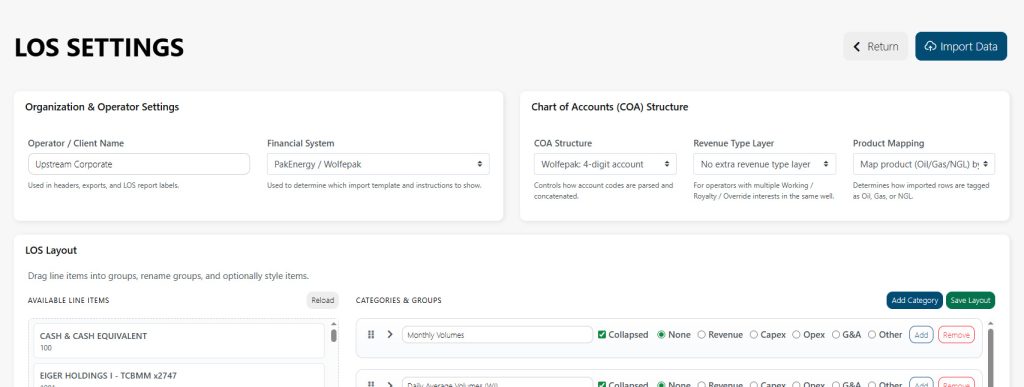
Organization & Operator Settings
The Organization & Operator Settings section controls basic naming and import/report assumptions for your organization.
Operator / Client Name
The Operator / Client Name is used in report headers, exports, and LOS report labels.
Use the name users expect to see when viewing or sharing LOS reports.
Examples:
- Smith Energy Operating
- North Basin Assets
- Demo Oil & Gas Company
- ABC Operating, LLC
If this field is blank, the system may default to the organization name.
Financial System
The Financial System setting tells Upstream+ what type of source data and template structure to expect.
This affects:
- Import templates
- Field names
- Account mapping expectations
- Financial data interpretation
- Validation rules
- Import compatibility warnings
Choose the financial system that matches the data you plan to upload.
Examples may include systems such as PakEnergy / Wolfepak or Quorum / ODA, depending on your organization’s configuration.
If you change this setting, download a fresh import template before uploading new data.
COA Structure
The COA Structure setting controls how Upstream+ reads and organizes your Chart of Accounts.
This is especially important when your accounting system uses main codes, sub codes, combined account codes, or custom account structures.
The COA structure affects:
- Import template columns
- Manual field mapping
- Account matching
- Category grouping
- LOS report layout
- Rollups and subtotals
Choose the structure that matches your source accounting data.
If account values appear in the wrong category or group, review this setting first.
The LOS Layout Builder
After making changes, be sure to click the Save Layout button at the top or your updates will be lost.
Categories
Categories represent the major sections of the LOS report.
They help organize account data into meaningful report areas. A category may represent a high-level financial or operational grouping, depending on how your organization structures its LOS.
Examples might include:
- Revenue
- Operating Expenses
- Taxes
- Transportation
- Workover
- Capital
- Other Income or Expense
Categories determine where mapped groups and accounts appear in the LOS layout.
Groups
Groups sit inside categories and help organize related accounts.
Use groups to create readable sections within the LOS Statement. Groups make the report easier to scan and help users understand how account-level detail rolls into larger totals.
Examples might include:
- Oil Revenue
- Gas Revenue
- Lease Operating Expense
- Compression
- Water Disposal
- Repairs and Maintenance
- Labor
- Chemicals
Groups should be named clearly so users can understand what kind of account activity belongs there.
Account mapping
Account mapping determines how imported account data appears in LOS reports.
Each account or account range should map to the correct category and group. This mapping is what allows raw accounting data to become a readable LOS Statement.
Review account mapping carefully if:
- Data appears in the wrong section
- Totals look incorrect
- Accounts are missing from reports
- Imported data appears as uncategorized
- A new account was added to the accounting system
- Your financial system or COA structure changed
Good mapping is essential for accurate reporting.
Reordering categories and groups
If the page allows dragging or reordering, use that to control the order categories and groups appear in reports.
A clear order helps users read the LOS Statement consistently.
Recommended order:
- Revenue
- Deductions or transportation
- Operating expenses
- Taxes
- Other expenses
- Net totals or summary rows
Your organization may use a different order depending on how reports are reviewed.
Collapsing and expanding sections
Some sections may be collapsible to make the settings page easier to manage.
Use collapse controls when you are working with many categories, groups, or accounts and want to focus on one area at a time.
Collapsing a section does not delete or disable it. It only hides the detail from view temporarily.
Import template impact
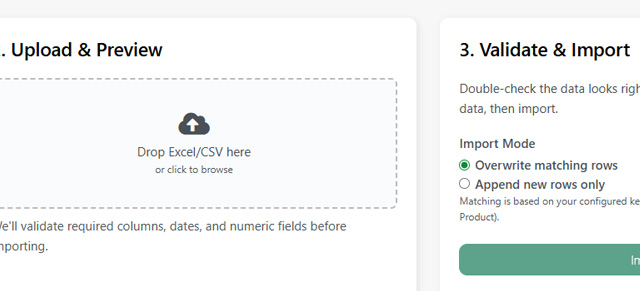
LOS Settings directly affect the import template.
Before uploading new data, make sure these settings are correct:
- Financial system
- COA structure
- Account mapping
- Categories and groups
- Default date/reporting assumptions, if available
After changing LOS Settings, download a new import template from the Import LOS Data page.
Using an old template after settings change may cause validation errors, mapping problems, or incorrect report layout.
Report impact
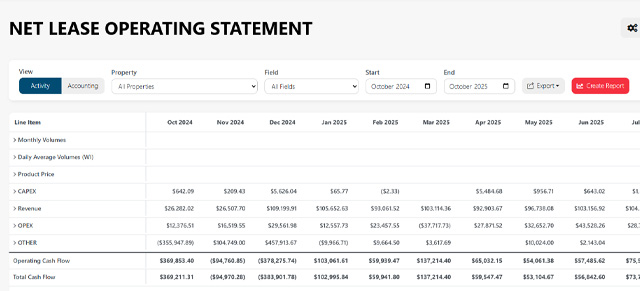
LOS Settings affect how data appears in reports such as:
- LOS Statement
- Well Summary Report
- Budget vs Actual
- Budget vs Actual Detail
- Dashboard widgets
- Exports
If a report looks wrong, check whether the issue is caused by settings, imported data, filters, or date range.
Delete All LOS Data (Danger Zone)
CAUTION: this is irreversible. Use only for dev/test or if you intentionally want to start over.
If you have the required admin permission, on the settings page there is a Danger Zone / Delete All LOS Data control. To proceed, just click the Delete All LOS Data button.
The process can take up to a minute to complete depending on the amount of data you have uploaded. Please do not close your browser until the process is finished. At that point, it will give you an alert and reload the page automatically.
Notes
- This deletes organization-scoped LOS data only — it will not delete your account or users.
- Make sure you have a backup or can re-import data.
Common workflows
Set up LOS Settings before the first import
- Open LOS Settings.
- Enter the Operator / Client Name.
- Select the correct financial system.
- Select the correct COA structure.
- Review categories.
- Review groups.
- Confirm account mapping.
- Go to Import LOS Data.
- Download a fresh template.
- Upload and validate the completed file.
Fix accounts showing in the wrong section
- Open LOS Settings.
- Find the category or group where the account currently appears.
- Confirm the account mapping.
- Move or remap the account to the correct group.
- Review the LOS Statement.
- Recalculate or refresh reports if needed.
Prepare for a new financial system format
- Confirm the correct financial system.
- Confirm the COA structure.
- Review import requirements.
- Download a new template.
- Test with a small file if possible.
- Review the import preview before importing.
Clean up the LOS layout
- Review category names.
- Review group names.
- Rename unclear labels.
- Reorder categories and groups into a logical sequence.
- Confirm account mappings.
- Open the LOS Statement to review the final layout.
Troubleshooting
My import template looks wrong
Check the Financial System and COA Structure settings. After making changes, download a fresh template.
My imported data is in the wrong category
Review account mapping, category assignments, and group assignments.
A report label is wrong
Check the Operator / Client Name and any related naming fields.
A category or group is missing from the LOS Statement
Confirm that the category or group exists, is mapped correctly, and contains accounts with data for the selected filters and date range.
Changes appeared immediately
LOS Settings may auto-save when fields are changed. Review updates carefully before making them.
Totals look incorrect
Check account mappings first, then review imported data, filters, date ranges, and report mode.
A new account is not showing where expected
Add or update the account mapping so Upstream+ knows which category and group should contain that account.