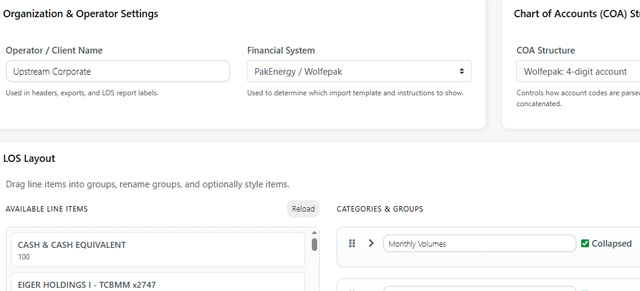
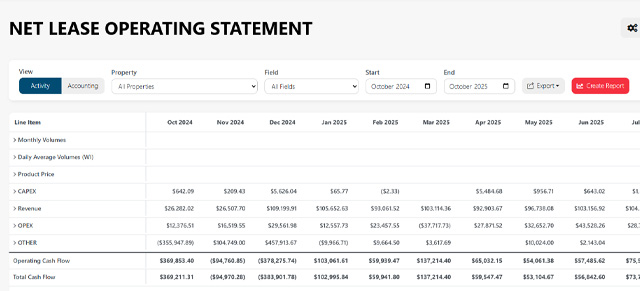
The LOS Layout builder lets you visually arrange how the Lease Operating Statement is rendered: create Categories, add Groups inside Categories, and drag Account/Line Items into groups. Remember to Save Layout when you finish.
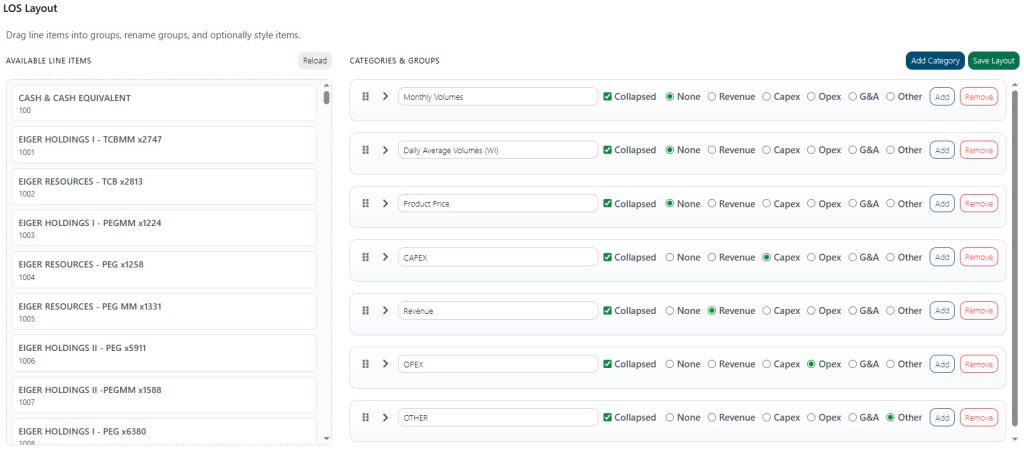
How to create or edit the LOS layout
- Navigate to Administration → Settings and scroll down to LOS Layout.
- Add a Category: click Add Category, enter a name (e.g.,
CAPEX) and set the category type (Capex/Opex). - Add Groups inside a Category: each group is a row that contains line items (examples:
Net Revenue,Monthly Volumes,Daily Average Volumes). - Drag & Drop Accounts: on the left, find account cards (e.g.,
DASH - OPERATING 7532), drag them into the appropriate Group. You can reorder items with the drag handles. - Group settings:
- Collapsed checkbox: if checked, the group is collapsed by default.
- Category type radio: choose
Revenue,Capex,Opex,G&A, orOther. - Add button in the group: add the selected account into the group.
- Remove to remove a group.
- Save Layout: after finishing changes click Save Layout. The new layout will be used by LOS and Budget vs Actual views.
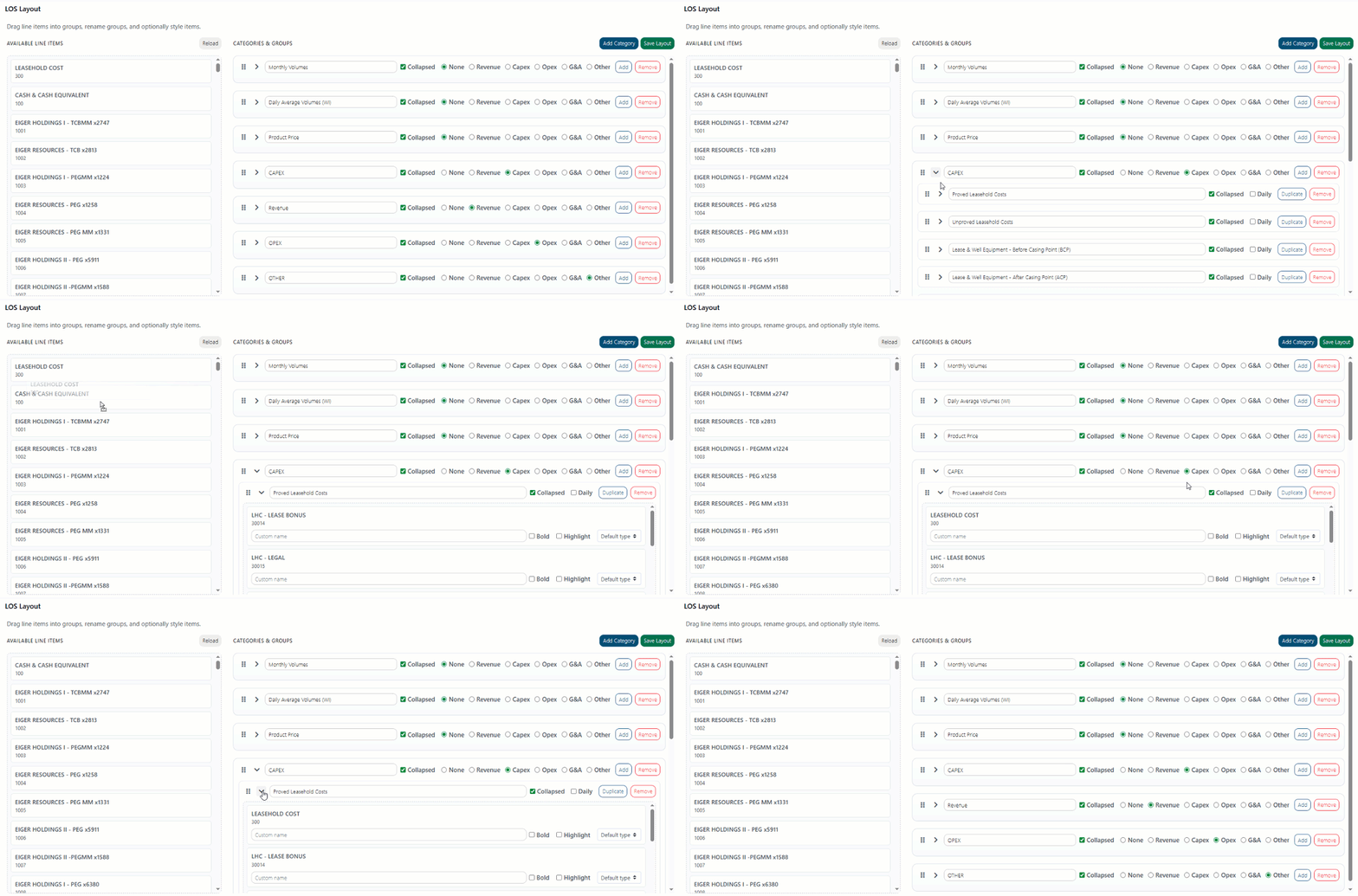
Remember to Save Layout, if you want: If you don’t click “Save Layout” at the top-right, all your changes to the layout will be lost. This is to prevent mistakes. If you make a mistake and want to start over, just reload the page. However, once you’re happy with what you have, that’s when you click “Save Layout” to save and commit those changes.
Tips
- Use Categories for the high-level LOS sections (Revenue, NET REVENUE, CAPEX, OPEX).
- Use Groups to control granular structure (for example
Lease & Well Equipment - Before Casing Point), and chooseCollapsedfor long sections. - You can create custom groups to match internal reporting standards (AFE grouping, project-level groups).
Troubleshooting
- Changes didn’t appear — ensure you clicked Save Layout. If multiple admins are editing simultaneously, reload to fetch latest layout.
- Accounts missing from left column — click Reload above the available line items to refresh the account list.
Was this article helpful?
Thanks for your feedback!