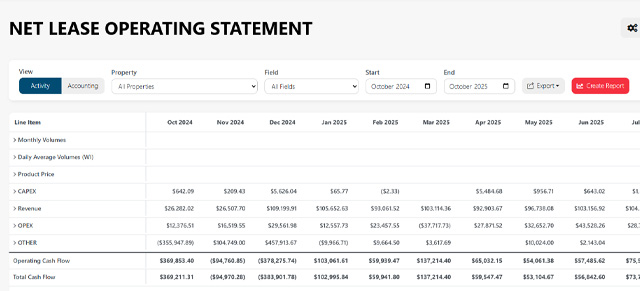
Use Saved Views and Saved Widgets to preserve report setups you use often. Instead of rebuilding the same filters, date ranges, and layout each time, you can save the configuration and return to it later or place it on a dashboard.
Saved views are best for reusable report setups. Saved widgets are best for dashboard reporting.

When to use saved views and widgets
Use saved views and widgets when you want to:
- Reuse the same report filters later
- Save a monthly or recurring review setup
- Add a report view to a dashboard
- Share a report setup with other users
- Create role-specific dashboards
- Keep private working views separate from shared team views
- Avoid manually rebuilding the same report repeatedly
Saved View
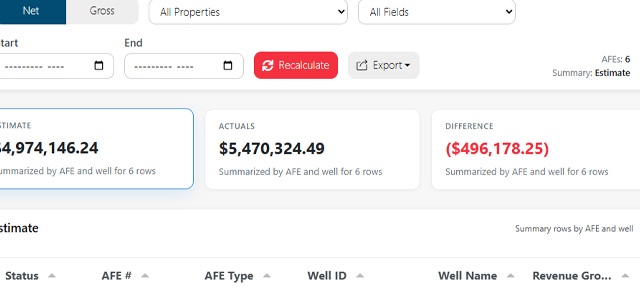
A Saved View stores the current report setup so you can return to it later.
A saved view may include things like:
- Report type
- Selected filters
- Date range
- Mode, such as Net or Gross
- Selected AFE
- Visible columns or layout preferences
- Other page-specific report settings
Use Save View when you want to come back to the same report setup from the original report page.
Saved Widget
A Saved Widget stores a report setup so it can be added to a dashboard.
Use Save Widget when the report should become part of a dashboard review process.
A saved widget may include:
- Widget display name
- Source report
- Saved report definition
- Filters
- Date range
- Visibility
- Dashboard selection
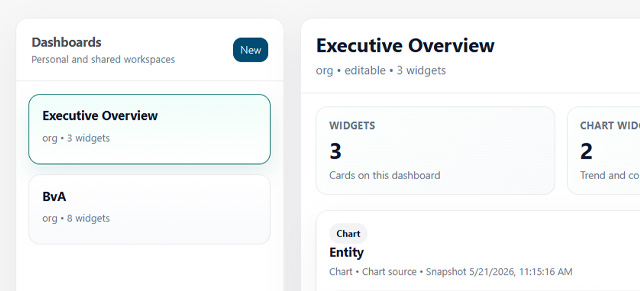
Widgets are useful when users need quick access to recurring information without opening and configuring the full report page.
Chart Widget
A Chart Widget saves the current report setup as a visual dashboard widget.
Use Save Chart Widget when a chart or visual summary is more useful than a table.
Chart widgets are helpful for:
- Trends
- Comparisons
- Variance summaries
- Executive dashboards
- Quick visual review
- Highlighting exceptions
Use table widgets when users need detail. Use chart widgets when users need fast interpretation.
View Name
The View Name is the name used to identify a saved view.
Choose a name that explains what the view is for.
Good examples:
- Monthly BvA Review
- West Field LOS Review
- Current Quarter AFE Detail
- All Properties Accounting View
- Volume Summary by Field
Avoid vague names like:
- Test
- New View
- Report
- Dashboard Item
- My View
A clear name helps you and other users find the saved item later.
Saved Definition Name
The Saved Definition Name identifies the saved report configuration behind a widget.
This name is usually more technical or administrative than the dashboard display name. It should describe the report setup clearly enough that users can recognize what the widget is based on.
Examples:
- BvA Net Summary – Active AFEs
- AFE Detail – Compressor Project
- LOS Accounting View – All Properties
- Well Summary Cash – North Field
Widget Display Name
The Widget Display Name is the name users see on the dashboard.
This should be shorter and easier to scan than the saved definition name.
Examples:
- Active AFE Variance
- North Field Cash
- Monthly LOS
- Compressor AFE Detail
- Top Expense Variance
Use dashboard-friendly names that fit in a widget header.
Select Dashboard
When saving a widget, choose the dashboard where the widget should appear.
If you do not see the dashboard you expect, you may not have access to it, or it may not exist yet.
Before saving, confirm that:
- You selected the correct dashboard
- The widget belongs on that dashboard
- The dashboard audience should see this information
- The visibility setting matches the intended audience
Visibility
Visibility controls who can see or use a saved view, widget, or dashboard item. The available visibility options may vary depending on permissions and configuration.
Private
Use Private when the saved item is only for you.
Private is best for:
- Draft views
- Personal analysis
- Testing filters
- One-off review
- Views that are not ready to share
Choose Private when you are still experimenting.
Org
Use Org when the saved item should be available across the organization.
Org visibility is best for:
- Company-wide dashboards
- Shared reporting standards
- Common monthly review views
- Reports that many users should access
Use this carefully. A broadly shared item should have a clear name and reliable configuration.
Shared
Use Shared when the saved item should be available to selected users or groups.
Shared visibility is best for:
- Department-level review
- Collaboration with specific users
- Reports that are useful to a limited audience
- Drafts that need review before organization-wide release
Use Shared when the item is not personal but also not meant for everyone.
Role
Use Role when the saved item should be available to users assigned to a specific role.
Role visibility is best for:
- Executive dashboards
- Accounting review views
- Operations dashboards
- Asset manager reports
- Leadership-level summary widgets
Use Role visibility when access should follow a user’s responsibility rather than a specific person.
Choosing the right option
Use this guide when deciding what to save.
| Need | Best option |
|---|---|
| I want to return to this report later | Save View |
| I want this report on a dashboard | Save Widget |
| I want a visual dashboard summary | Save Chart Widget |
| I am still testing | Private visibility |
| My whole company should use it | Org visibility |
| Only a team should use it | Shared visibility |
| A job role should use it | Role visibility |
Common workflows
Save a private working view
- Configure the report.
- Confirm the filters and date range.
- Click Save View.
- Enter a clear view name.
- Choose Private visibility.
- Save the view.
Use this workflow when you are still analyzing or testing.
Save a shared team view
- Configure the report.
- Confirm the data is correct.
- Click Save View.
- Enter a clear view name.
- Choose Shared or Role visibility.
- Save the view.
Use this workflow when multiple users need access to the same report setup.
Add a table widget to a dashboard
- Configure the report.
- Confirm the table shows the right data.
- Click Save Widget.
- Enter a saved definition name.
- Enter a widget display name.
- Choose the correct visibility.
- Select the dashboard.
- Save the widget.
- Open the dashboard and confirm the widget appears correctly.
Add a chart widget to a dashboard
- Configure the report.
- Confirm the filters are correct.
- Click Save Chart Widget.
- Enter the saved definition name.
- Enter the widget display name.
- Choose visibility.
- Select the dashboard.
- Save the chart widget.
- Review it on the dashboard.
Rename or replace a confusing saved item
- Open the source report.
- Recreate the desired filters.
- Save a new view or widget with a clearer name.
- Add it to the correct dashboard if needed.
- Remove the older confusing item if appropriate.
This is often safer than editing a shared item that other users may already rely on.
Troubleshooting
I cannot find my saved view
Check whether it was saved as a view or widget. Also confirm the visibility setting and source report page.
I cannot find a widget on the dashboard
Confirm that the widget was saved to the correct dashboard. If it was saved as Private, other users may not be able to see it.
Other users cannot see my saved item
Review the visibility setting. Private items are only visible to the creator.
I do not see the dashboard I want
You may not have access to that dashboard, or it may not exist yet.
The widget shows the wrong data
Return to the source report, recreate the correct filters, and save the widget again.
The widget name is confusing
Use a clearer widget display name. Dashboard names should be short and easy to scan.
Too many duplicate widgets exist
Review saved definitions, remove outdated items if appropriate, and standardize naming for recurring reports.