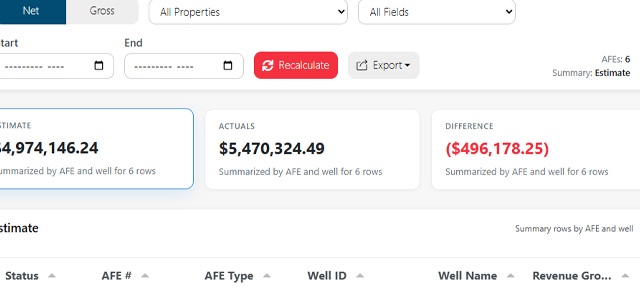
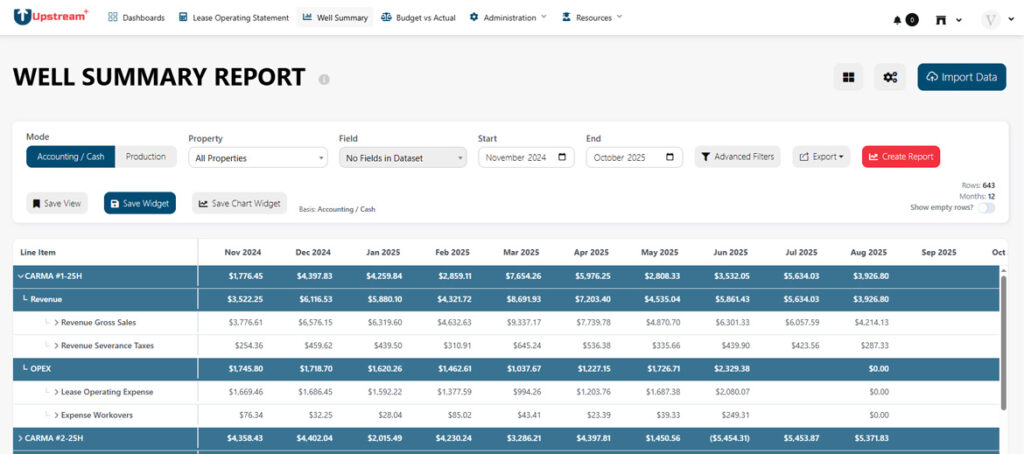
Use the Well Summary Report to review well-level performance across your LOS data. This report helps you compare wells, analyze cash or volume activity, and identify which wells are contributing most to revenue, expenses, production, or variance.
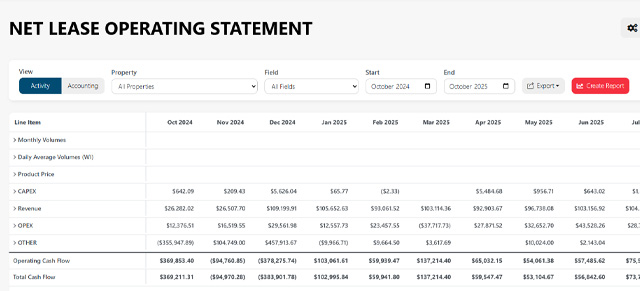
The Well Summary Report gives you a more focused view than the full LOS Statement by summarizing activity at the well level instead of only showing the statement layout.
When to use this page
Use the Well Summary Report when you want to:
- Review performance by well
- Compare wells across a selected property or field
- Analyze cash-based results
- Analyze volume-based results
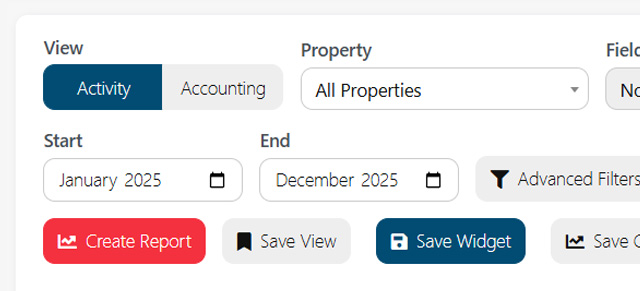
- Narrow results with property, field, date, or advanced filters
- Export well-level data for review
- Identify wells that need further investigation
- Confirm imported well data is flowing into reports correctly
This report is especially helpful when users need to move from a broad LOS review into a well-by-well operating review.
Before you start
The Well Summary Report depends on imported LOS data and the way your organization’s LOS Settings are configured.
If the report is blank or does not show the expected wells, check:
- Whether LOS data has been imported
- Property filter
- Field filter
- Start and end month
- Cash or Volume mode
- Advanced filters
- Whether the selected property or field has well-level data
- Whether the imported file included the expected well identifiers
Report modes
The Well Summary Report can be used in different modes depending on the kind of analysis you need.
Cash mode
Use Cash mode when you want to review financial activity by well.
Cash mode is useful for reviewing items such as:
- Revenue
- Expenses
- Net totals
- Lease operating costs
- Cash-based performance
- Financial contribution by well
Use this mode when the main question is financial: “Which wells are generating or consuming the most cash?”
Volume mode
Use Volume mode when you want to review production or activity volumes by well.
Volume mode is useful for reviewing items such as:
- Oil volume
- Gas volume
- Water volume
- Production trends
- Activity-level comparison
- Well output by reporting period
Use this mode when the main question is operational: “Which wells are producing the most, least, or changing over time?”
Filters and controls
The filters at the top of the page determine which wells and values appear in the report.
Property
Use the Property filter to show wells for a specific property or for all properties.
If multi-select is available, use it when you want to combine multiple properties in the same report.
If a well is missing, confirm that the correct property is selected.
Field
Use the Field filter to show wells for a specific field or for all fields.
This is helpful when your organization reviews assets by field instead of individual property.
If expected wells do not appear, check whether the selected field contains those wells in the imported data.
Start and End
Use Start and End to choose the reporting month range.
The report updates based on the selected months. If totals look too low or too high, confirm that the selected range matches the period you intended to review.
Advanced filters
Advanced filters help you narrow the report beyond the standard property, field, and date controls.
Depending on your data, advanced filters may allow you to focus on specific attributes such as:
- Entity
- Operator
- Well type
- Product
- Account category
- Account group
- Custom imported fields
Use advanced filters when the standard filters are too broad.
For example, you may use advanced filters to review only a subset of wells, only a certain product type, or only data tied to a particular imported attribute.
If the report returns fewer rows than expected, review the advanced filters to make sure they are not excluding data.
Reading the report
The Well Summary Report is designed to help you compare wells side by side.
Start by reviewing the highest-level totals, then look for wells with unusual values.
Common things to look for include:
- Wells with unusually high expenses
- Wells with low or missing revenue
- Wells with unexpected production volumes
- Wells with large month-to-month changes
- Wells that appear in one mode but not another
- Wells with blank or missing values
If something looks unusual, adjust the filters or compare the well against the LOS Statement for more context.
Cash analysis
In Cash mode, review the financial results for each well.
Useful questions include:
- Which wells have the highest revenue?
- Which wells have the highest operating expense?
- Which wells have negative net results?
- Which wells changed significantly from the prior period?
- Are expenses grouped where expected?
- Do results align with the LOS Statement?
If values do not look right, check account mapping in LOS Settings and confirm that the imported data includes the correct well, account, and date information.
Volume analysis
In Volume mode, review operational activity by well.
Useful questions include:
- Which wells have the highest production?
- Which wells have missing or zero volume?
- Which wells changed significantly over time?
- Are volumes appearing in the correct period?
- Is the selected date range correct?
- Does the imported data include the expected production fields?
If volume data is missing, confirm that the uploaded file included volume data and that the report is in Volume mode.
Common workflows
Review cash performance by well
- Open the Well Summary Report.
- Select Cash mode.
- Choose the property or field.
- Set the start and end months.
- Click Recalculate.
- Review wells with the highest and lowest totals.
- Export the report if needed.
Review production volume by well
- Open the Well Summary Report.
- Select Volume mode.
- Choose the property or field.
- Set the start and end months.
- Click Recalculate.
- Review volume totals by well.
- Investigate wells with missing or unexpected activity.
Compare wells within a field
- Select the field you want to review.
- Choose Cash or Volume mode.
- Set the reporting period.
- Apply advanced filters if needed.
- Click Recalculate.
- Compare well-level results in the table.
Investigate a missing well
- Confirm the selected property and field.
- Confirm the selected date range.
- Check whether advanced filters are excluding the well.
- Confirm the well exists in the imported data.
- Confirm the relevant data was included in the latest import.
- Review the LOS Statement or import file if needed.
Prepare a report for review
- Choose Cash or Volume mode.
- Set the desired property or field.
- Set the reporting month range.
- Apply advanced filters.
- Recalculate the report.
- Review the results for reasonableness.
- Export the report.
Troubleshooting
The report is blank
Confirm that LOS data has been imported and that the selected property, field, date range, and mode contain data.
A well is missing
Check the property, field, advanced filters, and imported source data. The well may not be included in the selected filters or reporting period.
Cash values look wrong
Review the selected date range, account mapping, property, field, and imported accounting data.
Volume values are missing
Confirm that the uploaded file included volume data and that you are using Volume mode.
Too many wells are showing
Use property, field, or advanced filters to narrow the report.
Too few wells are showing
Clear advanced filters and confirm that the selected property, field, and date range are not too narrow.
The export does not match what I expected
Confirm the selected mode and filters before exporting. The export follows the current report setup.