Custom Well Fields let you report on wells using organization-specific information that goes beyond the standard Upstream+ well attributes.
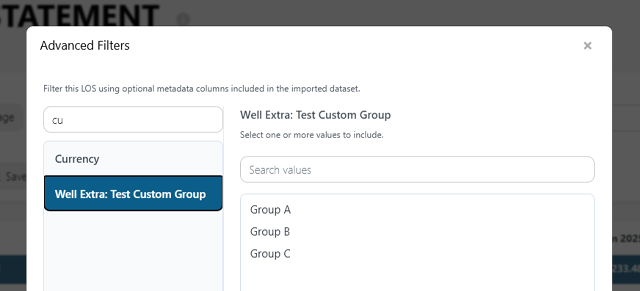
After a custom field has been added through the uploader, it can appear in Advanced Filters as a Well Extra field.
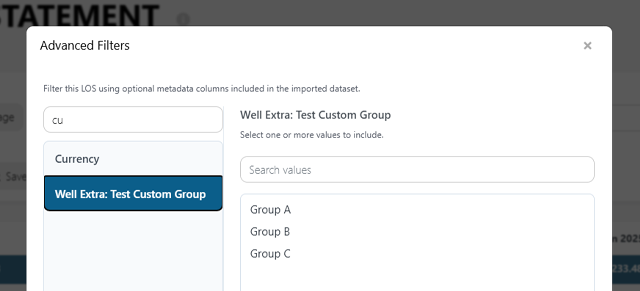
For example, if your uploader contains a custom field named:
Operating Area
Upstream+ can make it available as:
Well Extra: Operating Area
You can then filter reports based on the values your organization assigned to its wells.
Example
Suppose your organization has assigned the following values:
| Well | Operating Area |
|---|---|
| Well A | North |
| Well B | Central |
| Well C | North |
| Well D | South |
Selecting:
Well Extra: Operating Area = North
limits the report to wells assigned to the North operating area.
How to Apply a Custom Well Filter
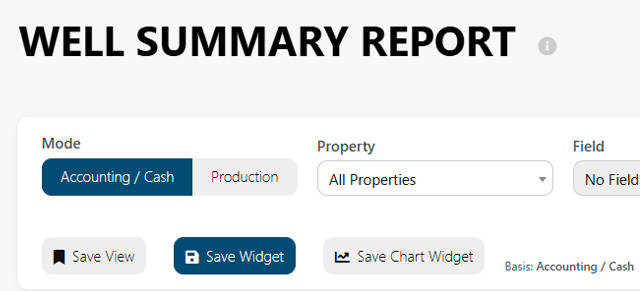
- Open a report that supports Advanced Filters, such as Well Summary.
- Select Advanced Filters.
- Locate the appropriate Well Extra field.
- Select the value you want to report on.
- Apply the filter.
The active filter is displayed with the custom field name and selected value so you can see exactly how the report is being limited.
For example:
Well Extra: Operating Area: North
Custom Field Values Come from Your Well Data
The available filter values are based on the values that were imported for your wells.
If your custom field contains:
- North
- Central
- South
those values can be made available as filter selections.
This means you do not have to maintain a separate list of filter choices. The classifications already associated with your wells become the basis for the filter.
Combining Custom Fields with Other Filters
Custom Well Fields can be used alongside standard Upstream+ reporting filters.
For example, you might combine:
- State = Texas
- Field = Permian
- Well Extra: Operating Area = North
This lets you progressively narrow the report to the specific group of wells you want to analyze.
Use Custom Fields for Organization-Specific Reporting
Custom Well Fields are particularly useful for classifications that exist inside your organization but may not exist in the source accounting system.
Common examples include:
- Internal asset groups
- Acquisition portfolios
- Operating teams
- Engineering classifications
- Development stages
- Management reporting groups
Instead of forcing those classifications into a standard accounting or well field, you can preserve them as their own custom attributes.
Keeping Filter Values Consistent
Advanced Filters work best when custom values are entered consistently.
For example, these values would be treated as different labels:
NorthNORTHNorth Region
If they all represent the same group, use a single naming convention in the uploader.
Consistent field names and values make filtering more predictable and make saved reporting views easier to maintain.
Adding New Values Later
You can continue adding or updating custom values as your organization changes.
For example, if you later add a new operating area named West, update the appropriate wells in the uploader and import the revised well information.
The new classification can then become available anywhere that custom Well Extra values are supported.
Creating Better Reporting Structures
Custom fields give organizations a way to make Upstream+ reflect how they actually manage their assets.
Standard fields answer questions such as:
- What state is this well in?
- What field is it associated with?
- Who operates it?
Custom Well Fields can answer questions specific to your business:
- Which internal team owns this asset?
- Which acquisition did it come from?
- Which management portfolio does it belong to?
- Which internal development stage is it in?
That makes Advanced Filters useful not only for accounting analysis, but also for operational and management reporting.