Visualize your Lease Operating Statement in any way you want with Upstream+’s Report Builder.
Where to find it
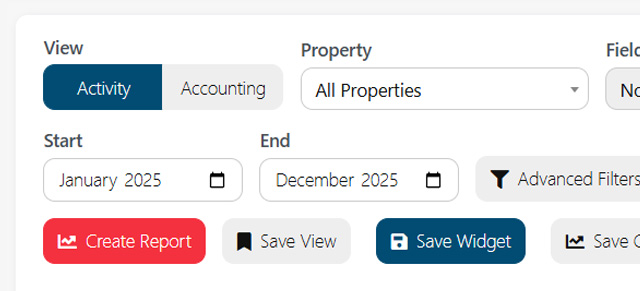
- Sign in and open Upstream+ → Net Lease Operating Statement (URL path:
/upstream-plus/los; dashboard shortcut may redirect here). - In the toolbar, click Create Report (red button). This opens the Report Builder modal (the header shows New Report on step 1, then Report Builder).
- The subtitle shows Step X of 5 and the current step name. Use Back / Next in the footer (bottom-right Next is called out in the UI on step 1).
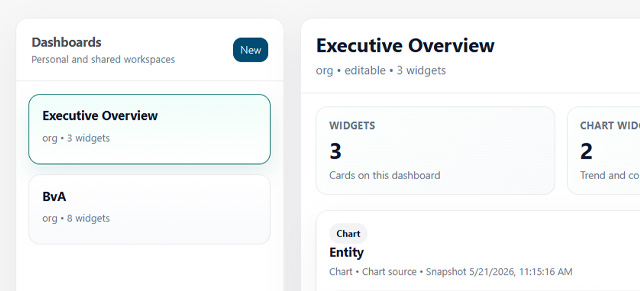
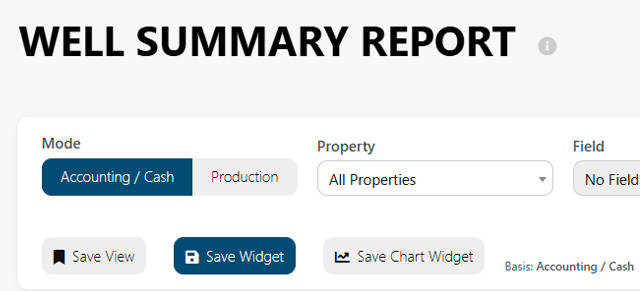
Related but different: Save Chart Widget on the main LOS toolbar saves a widget for dashboards; the wizard’s Save Report stores a saved report definition you can reload from Load saved report in step 1.
Step 1 — Scope and basics
Purpose: Name the report, choose data scope, chart style, comparisons, and sharing.
| Area | What customers do |
|---|---|
| Property / Field / Date range | Same concepts as the main LOS grid: single or multi-select property/field, and start/end month. These define which data the builder can use. |
| Load saved report | Pick an existing definition or New report to start fresh. |
| Name / Description | Name is required before you can go to step 2; if it’s empty, the app prompts you to enter it. Description is optional. |
| Visibility | Private (only you), Org (organization), or Role (pick one or more roles when Role is selected). |
| Use current LOS filters | When enabled, the report uses the same Advanced Filters (and related scope) as the main LOS page, and custom comparison months can stay aligned with the wizard date range. |
| Dataset | LOS (default) for operating statement data; Budget, Production, and GL are additional sources where your organization has that data configured. Budget selection triggers budget-related metric loading. |
| Chart type | Line, Bar, Stacked bar, or Pie. |
| Comparison | None; Prior period; Year over year (YoY); or Custom with compare start/end months. |
| Quick templates | One-click shortcuts: e.g. Oct vs Nov (prior-period bar), YTD vs LY (YoY line), Pie Breakdown (pie chart, line-item style dimension). |
Step 2 — Select metrics (dimensions and X-axis)
Purpose: Choose how data is grouped and which values appear on the chart’s horizontal (X) axis.
- Dimensions: Check one or more of Month, Line Item, Property, Field, COA Category, Product. The metric list depends on the dimensions you select (for example, with Month you pick specific months or month slices; with Line Item you pick line items from the catalog).
- Metrics: Search the list, click a metric name to see Metric details (preview numbers). Use + Add to add it to the X axis; Remove removes it. Until you add a metric, the preview is “preview only.”
- Metric details (when editable): Aggregation (SUM, AVG, COUNT), Value type (Money, Volume, Price — affects formatting), and Cost classification (Fixed / Variable / Unknown) where applicable.
- If Month is selected and a comparison mode is on, the UI may highlight Month to remind you that comparisons affect time grouping.
You must select at least one dimension before metrics load.
Step 3 — Breakdown and Y-axis
Purpose: Choose a breakdown dimension for the vertical (Y) axis and the metrics to plot there.
- Breakdown dimension: Only dimensions not already used in step 2 are listed. If none remain, go back to step 2 and adjust dimensions.
- Metrics (Y axis): Same pattern as step 2: search, click for details, + Add / Remove.
- Show % variance series: When a comparison is enabled, this adds a percentage variance series to the chart (tooltip explains it).
Step 4 — Preview and save
Purpose: Review the chart and underlying table, export, and save the definition.
- The page loads a chart preview and a tabular preview of the same data. Pagination controls under the footer let you move through long tables.
- Chart type can be changed again from a dropdown without leaving this step.
- Export PNG and Export PDF download the chart image (PDF packs the chart into a landscape letter PDF).
- Save Report stores the definition (name, visibility, dataset, dimensions, metrics, comparisons, filters, etc.). After a successful save, you’ll see a confirmation; the report appears under Load saved report on step 1 for the next time.
Technical note (behavior): When the server report query is available, the preview often comes from the server for speed and consistency; some combinations (for example certain variance previews) may be built in the browser instead.
Step 5 — Drilldown
Purpose: See underlying transaction-style detail for a metric and month.
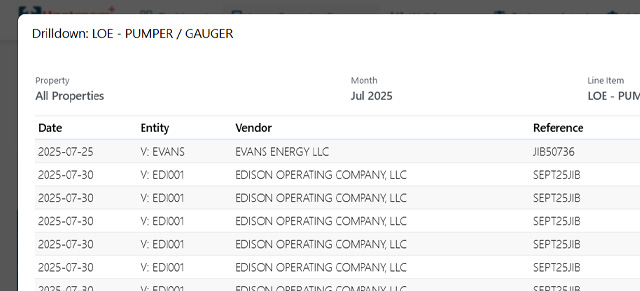
- From step 4, use Next: Drilldown to open step 5 with a default drilldown, or click a point on the chart to jump here (when the point has month and row context). Chart clicks may also open the separate full LOS drilldown modal with richer columns (date, entity, vendor, reference, description, amount).
- Step 5 shows a compact table (e.g. invoice/date/account/amount) for quick inspection. Use Done or Cancel to close the wizard when finished.
Tips and troubleshooting
- No data / empty preview: Widen the date range, check Property/Field scope, turn off restrictive Advanced Filters on the main LOS (or disable Use current LOS filters to experiment), and ensure step 2/3 have metrics added on both axes as needed.
- Budget dataset: Expect budget-specific metrics and summaries; changing properties/fields in the wizard may refresh budget summaries.
- Saving: Without Save Report, closing the modal loses unsaved changes. Use Load saved report to continue editing a stored definition.