The Master Data Editor lets authorized users correct account, property, and well information directly in Upstream+, without editing and uploading an entire workbook for a single change.
Use it to update account classifications, correct names or property metadata, add a reporting account or property, and review the history of changes.
Open the editor
- Sign in and select the organization you want to work in.
- Open the main navigation.
- Under Administration, select Master Data Editor.
Your organization administrator controls your access. Viewing records, editing account metadata, editing property metadata, adding records, editing identity fields, and clearing overrides have separate permissions. If the editor or an action is unavailable, contact your administrator.
Understand source values and overrides
For imported records, the editor distinguishes three values:
| Value | Meaning |
|---|---|
| Source Value | The tracked value supplied by an upload or connected source. For older records, the editor may begin with the existing stored value. |
| Override Value | An intentional correction entered in Upstream+. |
| Effective Value | The value used for reporting, with an override taking priority when one exists. |
An override is designed to remain in place through subsequent imports or syncs until an authorized user clears it. Source mismatch means an override differs from the tracked source value. It does not, by itself, indicate an error.
Older records may display Unknown source or Not tracked because historical import details were not recorded. This does not mean the record is unusable.
Find a record
Choose Accounts or Properties & Wells, then search for a code or name. Property searches also support API numbers and property reference codes. For an ODA account, search for its main code or sub code.
Use the status and source filters to narrow the list. Additional controls include:
- Has override: Records with at least one active override.
- Source mismatch: Records whose overrides differ from their source values.
- Used in layout: Accounts referenced by saved LOS layouts.
- Missing from source: Records marked absent from a completed replacement import. These records are retained for review.
Use Previous and Next to move through the results. Export Page downloads a CSV of the current results page, rather than the entire dataset.
Edit an account, property, or well
- Select the record to open its editing drawer.
- Review the source, override, and effective values. Use Compare field to inspect a particular field.
- Review Dependencies for affected LOS layouts or matching transaction and budget rows. These counts do not include every saved-report or filter dependency.
- Change the appropriate metadata.
- Enter a Reason for Change explaining the correction.
- Select Save and close. To save and begin adding another record, select Save and new.
For an imported record, changed fields become overrides. For a User Created record, edits update the user-managed record directly.
Account fields include Active, Account Type, Category, Revenue Product, and Revenue Interest Type. Property fields include Field, State, County, and other supported well metadata.
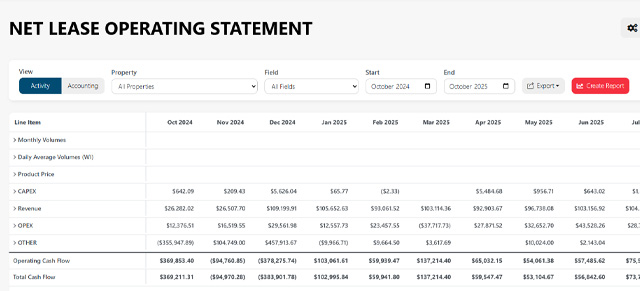
Changing an account from X to REVENUE or EXPENSE can make its transactions eligible for reporting. Actual display also depends on the report’s layout, filters, and other settings. After saving, reopen or refresh the affected report and review the result.
Select Cancel to leave without saving. If you have unsaved changes, the editor offers Keep editing or Discard changes.
Clear an override and return to the source
- Open the imported record.
- Choose the field using Compare field.
- Select Clear override for this field. To remove every override on the record, select Clear all overrides.
- Review the proposed effective values.
- Enter a Reason for Change and select Save and close.
Clearing uses the latest tracked source value, which may differ from the value present when the override was originally created. The clear action takes effect only after you save.
User-created records do not have imported-source overrides to clear.
Add an account or property
- Select Add Record.
- Choose Account or Property / Well under Record Type.
- Enter a unique code and a name, then complete the relevant metadata.
- Review Active and, for accounts, Account Type. New accounts initially use X, so choose the appropriate classification when reporting is intended.
- Enter a Reason for Change and save.
New records are labeled User Created. Duplicate identity conflicts are rejected. Adding a master record does not create financial transactions or automatically add an account to a saved LOS layout.
Change identity fields carefully
Account codes, well codes, API numbers, and property reference codes require elevated permission. In Wolfepak organizations, Well / Property Name also receives identity protection because it participates in import matching.
Before saving an identity change, review the warning and confirmation. Identity changes preserve the record ID and historical transaction rows, but do not rewrite transaction identifiers. Transactions using a previous code can become unmapped and disappear from affected reports.
Use identity editing only when you intend to change how records match transactions. For a simple label correction, edit the appropriate metadata instead.
Review history and unmapped transactions
- View History in a record’s drawer shows its recorded changes, including the user, timestamp, previous value, new value, source value, and reason.
- Audit Log shows field changes for the selected record type. Change History to Import & Restore to review organization import jobs and recorded restore operations. Import rows show the latest job status, not every status transition.
- Overrides lists records with active overrides. Use Record type to choose accounts or properties.
- Unmapped Transactions lists transaction identities without a matching master record, with transaction-row counts. Review the identities before adding or correcting a record. An inactive or X-classified account still counts as mapped when its identity matches.
If a change cannot be saved
- Duplicate identity: Review existing records and correct the conflicting identifier.
- Record changed since you opened it: Reload the record, review the latest values, and reapply the intended correction.
- Organization operation in progress: Wait for the import, restore, or other blocking data operation to finish, then reload and try again.
- Missing permission: Ask your organization administrator to review your role’s access.
Always verify the affected report after changing classification, active status, or an identity field. Setting Active to No retains the master record and its historical transactions; it is not a deletion.