Restore Points let you save your organization’s LOS content before a major change and restore that content if you need to recover. Use them before replacing imported data, changing mappings, or making a substantial LOS configuration change.
Restore Points is currently labeled BETA. It is intended for short-term recovery. Restore Points use an application-managed format and do not replace your normal CSV or Excel exports.
Open Restore Points
Open Administration → Restore Points for the organization you want to protect.
Your role controls which actions are available. Viewing, creating, restoring LOS Data, restoring LOS Settings, keeping points indefinitely, and deleting points have separate permissions. If the page or an action is missing, ask your administrator to review your role permissions.
Choose what to save
When creating a Restore Point, choose the content you want to include:
| Option | What it includes | When to use it |
|---|---|---|
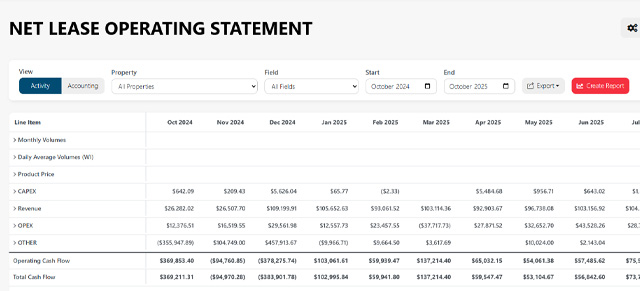
| LOS Data | Transactions, wells, chart of accounts (COA), AFE data, and Data Hub sync position | Before a major import or data change |
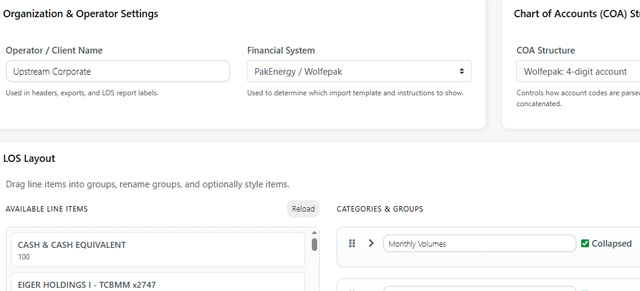
| LOS Settings | LOS layouts, groupings, user layout selections, and LOS organization settings | Before changing how your LOS is organized or displayed |
| Everything | LOS Data and LOS Settings together | Before changes that affect both data and settings |
Everything means the supported LOS content. Dashboard settings, credentials, and the audit log are not restored by these options. Restoring a point does not roll back changes in your external accounting system.
Create a Restore Point
- Select Create Restore Point.
- Choose LOS Data, LOS Settings, or Everything.
- Select Create Restore Point in the dialog.
- Wait for creation to finish. You can leave the page while it runs and return later.
- Confirm the point is available before making the change you want to protect against.
The name is generated automatically. Use the creation time, creator, trigger, and contents to identify the right point later.
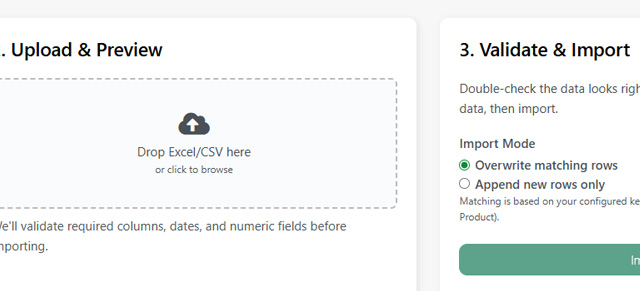
Some import and data-change workflows also offer protection before an operation. Review that option when it appears. Do not assume every import or change creates a Restore Point automatically.
Read the Restore Points list
The list shows each point’s name, creation time, creator, trigger, contents, expiration, and status. The contents summary helps you confirm what was saved.
Common statuses include:
| Status | Meaning |
|---|---|
| Creating | The point is still being saved |
| Ready | The point is available for recovery |
| Protected | The point is marked to be kept indefinitely |
| Restoring | A restore has been queued or is running |
| Cancelling | A cancellation request is being processed |
| Cancelled or Restore Cancelled | The indicated operation was cancelled |
| Failed | The operation did not finish successfully |
| Expired | The point is past its retention period |
| Incompatible | The saved content cannot be restored with the current application structure |
Use Refresh to update the list when checking progress.
Keep a point indefinitely
Unprotected points expire after the retention period shown on the page. The page also shows limits for automatic, manual, and indefinitely kept points. When a normal retention limit is reached, the oldest eligible point is removed.
To retain a completed point for longer, turn on Keep indefinitely for that row. You need the appropriate permission, and there must be room within the protected-point limit.
Turning this option off returns the point to normal retention. Expiration is based on its original creation time, so an older point may become eligible for removal immediately.
Restore saved content
Restoring replaces the selected current LOS content with the saved content. Changes made after that point was created may be replaced. Confirm the organization, point, and scope before continuing.
- Find the point you want to use and select its Restore action.
- Choose the content to restore. Available choices depend on what the point contains and your restore permissions.
- Read the This restore will summary carefully.
- Select Create a Restore Point before restoring. This recommended option saves the current content so you have a recovery path if you need to reverse the restore. It is not selected automatically.
- Type RESTORE in the confirmation field.
- Select Restore and wait for the operation to finish.
- After the success message, review your LOS and Data Hub sync settings.
Restoring LOS Data replaces the supported data, import staging evidence, and Data Hub sync position. Restoring LOS Settings replaces supported layouts, groupings, mappings, and LOS organization settings. Everything restores both. The dialog explains the impact of your specific selection.
The restore is recorded in the audit log. Allow it to finish before starting another major data operation.
Cancel an operation
If a cancellation action is available while a point is being created or restored, select it to request cancellation. A request may take time to process. Wait for the final status before assuming the operation has stopped.
An operation that has already completed cannot be cancelled. If a completed restore needs to be reversed, use the safety point created before that restore, if one was successfully saved.
Delete a Restore Point
- Select the point’s delete action.
- Confirm you no longer need that recovery point.
- Type DELETE and select Delete Restore Point.
Deletion cannot be undone. Deleting a Restore Point removes that recovery option; it does not restore or remove your current LOS content.
Troubleshooting
I cannot create or keep another point
Check the usage counts and limits shown on the page. Remove a point you no longer need or ask your administrator for assistance. Review retention before changing Keep indefinitely on an older point.
Restore is unavailable
Check the point’s status and contents, along with your role permissions. A point that is still being created, expired, failed, or incompatible may not be available for restoration. The restore choices also depend on which content was saved.
A point is taking longer than expected
Refresh the list and check its status. Creation and restoration run in the background, so closing the page does not mean the operation has stopped. If an operation fails or appears stuck, contact support with the organization, Restore Point name, time, and any displayed error message.
My dashboard settings did not change
Dashboard settings are outside the Restore Points scopes. Review dashboards separately after restoring LOS content.